About This Expression
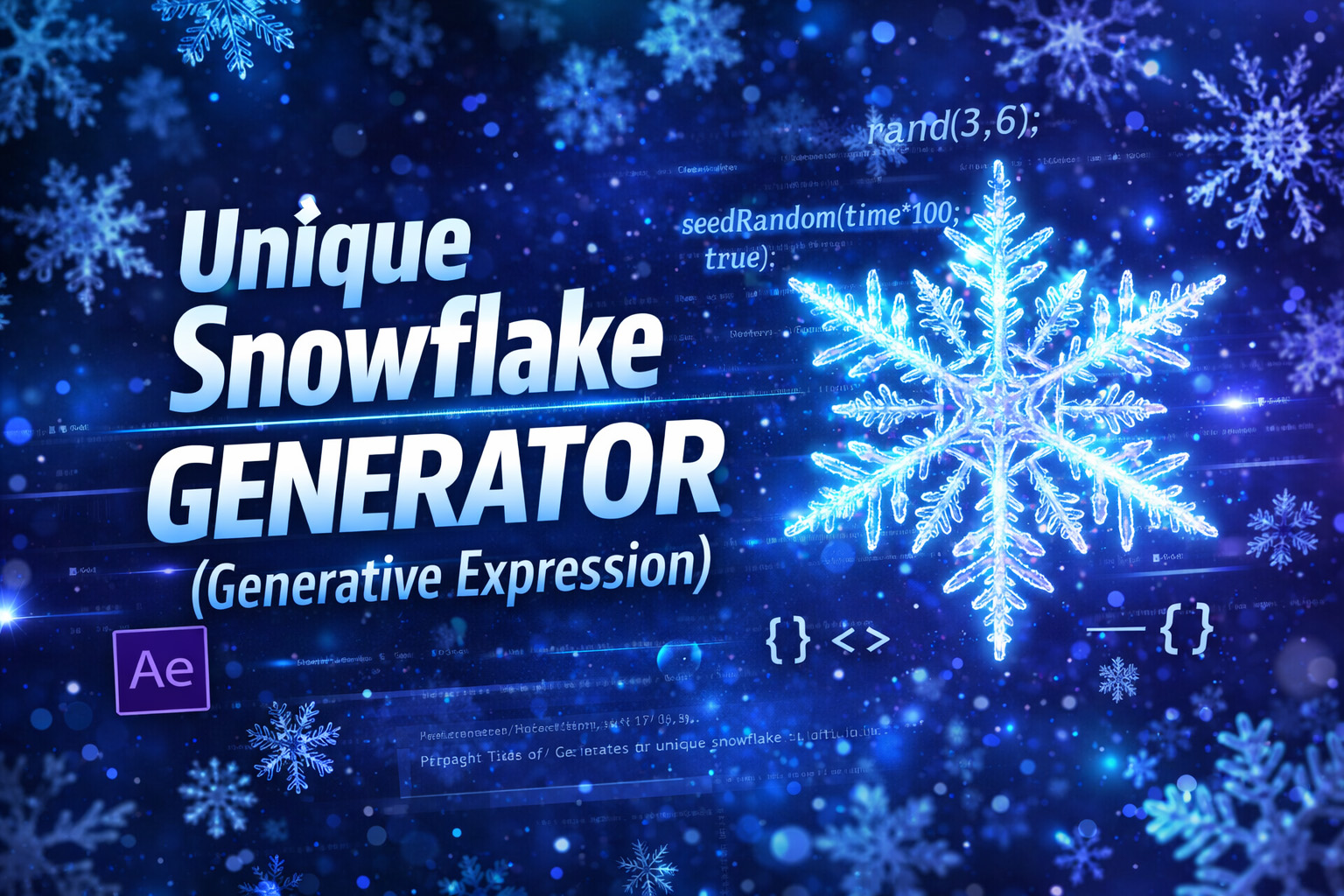
This expression generates a procedural snowflake using a combination of branching geometry, symmetry, and controlled randomness.
Instead of drawing the full snowflake manually, the logic first creates a single arm with small side branches that vary in length and thickness. This arm is then rotated evenly around a circle to form a complete crystalline structure.
The key feature is the use of:
seedRandom(index, true);by using the layer index as the random seed, every layer becomes deterministic yet unique. When the layer is duplicated, its index changes—causing the expression to generate a completely different snowflake while keeping the same overall rules.
This method mirrors how real snowflakes form in nature: structured growth guided by symmetry, with subtle randomness ensuring no two results are identical.
Expression
seedRandom(index, true);
arms = 8;
radius = 100;
branchCount = Math.floor(random(3, 6));
armWidth = 5;
// Store shape of ONE arm (right side)
armProfile = [];
// Generate one arm
for (j = 1; j <= branchCount; j++) {
 t = j / (branchCount + 1);
 dist = t * radius;
 currentWidth = armWidth * random(0.5, 1.5);
 armProfile.push({x: currentWidth, y: -dist});
 branchLen = random(20, 60) * (1 - t);
 branchAngle = -Math.PI / 3;
 bx = currentWidth + Math.cos(branchAngle) * branchLen;
 by = -dist + Math.sin(branchAngle) * branchLen;
 armProfile.push({x: bx, y: by});
 armProfile.push({x: currentWidth, y: -(dist + 15)});
}
// Rotate helper
function rotatePoint(x, y, angle) {
 ca = Math.cos(angle);
 sa = Math.sin(angle);
 return [x * ca - y * sa, x * sa + y * ca];
}
// Build full snowflake
pts = [];
for (i = 0; i < arms; i++) {
 rotAngle = (i / arms) * Math.PI * 2;
 // Right side
 for (k = 0; k < armProfile.length; k++) {
  p = rotatePoint(armProfile[k].x, armProfile[k].y, rotAngle);
  pts.push(p);
 }
 // Main tip
 tip = rotatePoint(0, -radius, rotAngle);
 pts.push(tip);
 // Left side (mirrored)
 for (k = armProfile.length - 1; k >= 0; k--) {
  p = rotatePoint(-armProfile[k].x, armProfile[k].y, rotAngle);
  pts.push(p);
 }
}
createPath(pts, [], [], true);
How We Use This Expression
Step 1: Create a Shape Layer
- Open your composition in After Effects
- Go to Layer → New → Shape Layer
- Select the shape layer
This expression generates a vector path, so it must be applied to a Shape Path.
Step 2: Add a Path
- Twirl open the shape layer
- Go to Contents → Shape 1
- Click Add → Path
This creates a path that can be fully controlled by an expression.
Step 3: Apply the Expression to the Path
- Twirl open Path 1
- Hold Alt (Windows) / Option (Mac) and click the Path stopwatch
- Paste the full snowflake expression
- Click outside the editor to apply
The path will instantly form a complete, symmetrical snowflake.
Step 4: Generate Variations by Duplicating
This expression uses:
seedRandom(index, true);
That means:
- Each layer index creates a unique snowflake
- Duplicating the shape layer instantly generates a new design
- No sliders or keyframes are required
Perfect for creating snowflake collections quickly.
Step 5: Position & Scale Safely
- Use Transform → Position to place the snowflake
- Use Transform → Scale to resize it
Avoid editing the path points manually—let the expression handle the geometry.
Step 6: Customize the Snowflake Shape
Inside the expression, you can adjust:
arms→ number of snowflake armsradius→ overall sizebranchCount→ detail densityarmWidth→ thickness of branches
Each change creates a new structural variation.
Step 7: Style the Snowflake
Once the shape is generated, you can:
- Add Stroke for icy outlines
- Add Fill for solid or gradient snowflakes
- Apply Glow or Drop Shadow for depth
- Animate Rotation for gentle drifting motion
The expression controls structure; effects control appearance.
Step 8: Build Snowflake Scenes
To create snowfall visuals:
- Duplicate multiple snowflake layers
- Combine with a falling-position expression
- Vary scale and opacity for depth
This creates a full procedural snowfall system.
Best Use Cases in After Effects
- Snowflake generators
- Winter & holiday animations
- Background patterns
- Motion design templates
- Decorative transitions
Recent Blogs
-
Create Procedural Spiral Path (Dynamic Vector Spiral Expression)
-
Animated 2D DNA Helix Path (Procedural Helix Expression)
-
Text Glitch Effect Expression (Real-Time Character Corruption)
-
Auto Scale to Comp (Smart Fit & Fill Scale Expression)
-
Snap to Layer or Comp Corners (Dynamic Alignment Expression)
-
Rainbow Color Cycle (Seamless HSL Color Loop Expression)
-
Christmas Lights Color Generator (Procedural Holiday Palette Expression)
-
Neon Light Flicker (Organic Electrical Glitch Expression)
-
Hanging Ornament Sway Animation (Natural Pendulum Rotation Expression)
-
Bell Shake & Ring Motion (Impact-Driven Oscillation Expression)