About This Expression
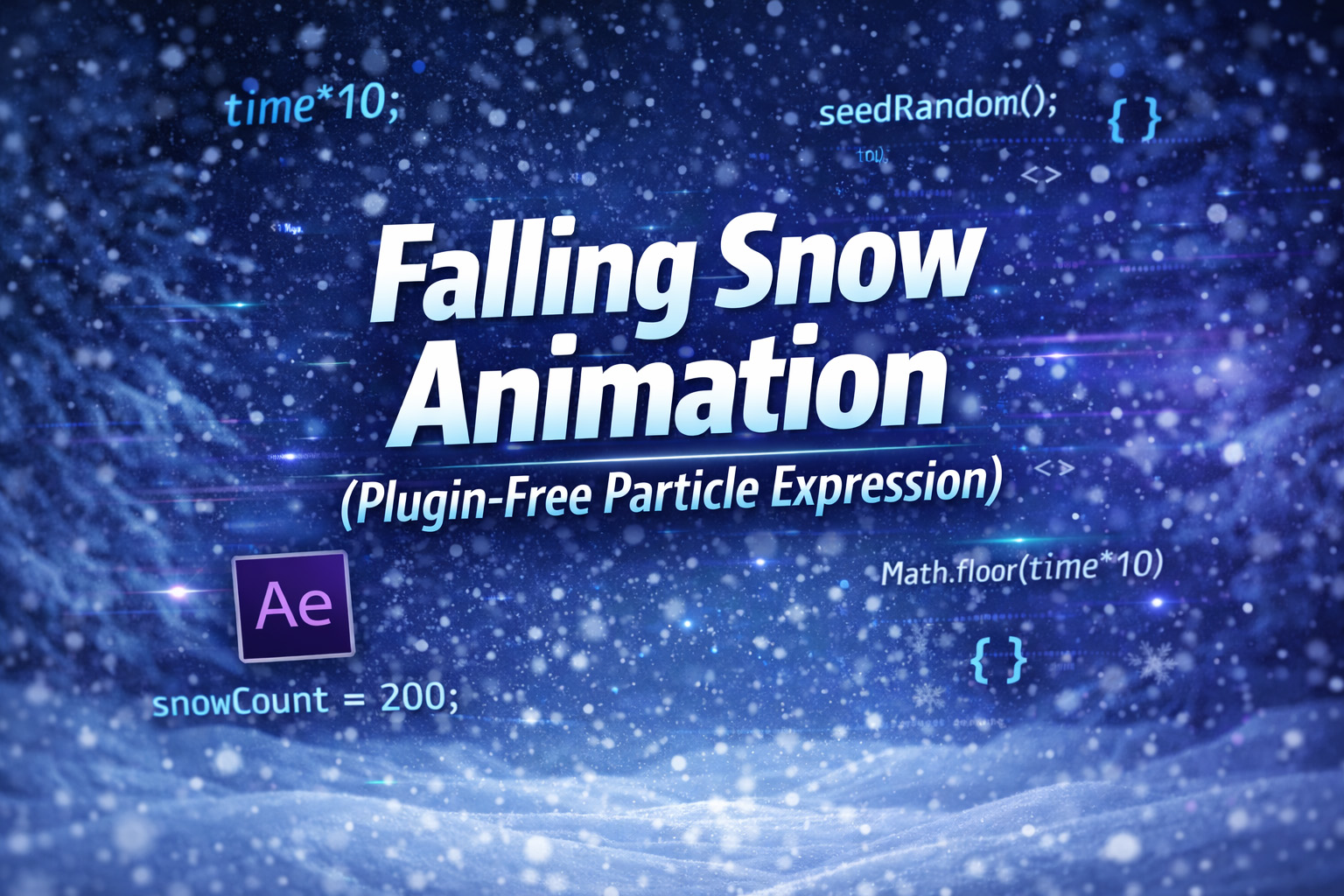
This expression creates a smooth, looping falling snow animation without using any plugins or built-in particle systems. Each layer behaves like an independent snowflake, falling from the top of the composition to the bottom with natural variation.
The animation relies on deterministic randomness, controlled by:
seedRandom(index, true);This ensures that:
- Every layer has unique movement
- The motion stays consistent across previews and renders
- Duplicating a layer instantly creates a new snowflake with different behavior
The result is a lightweight particle system that feels organic, efficient, and fully customizable.
Vertical Movement
Each snowflake falls downward at a random speed using modulo logic. When it reaches the bottom, it resets to the top seamlessly—without popping or visible jumps.
Horizontal Sway (Wind Effect)
A sine wave is used to create gentle side-to-side motion, simulating wind. Each flake has its own sway frequency and wind strength, which prevents the movement from feeling mechanical.
Advanced Boundary Logic
The expression calculates the object’s actual height using sourceRectAtTime() and adds a safety buffer. This ensures flakes:
- Fully exit the frame before resetting
- Never clip or pop on screen
- Remain visually smooth even when rotated or scaled
Expression
seedRandom(index, true);
speed = random(100, 400);
windAmt = random(-100, 100);
swayFreq = random(0.5, 2);
startOffset = random(0, 10000);
startX = random(0, thisComp.width);
// We measure size at time 0 to prevent jitter if the flake rotates
rect = sourceRectAtTime(0, false);
scaleY = transform.scale[1] / 100;
objHeight = rect.height * scaleY;
// We add a safety buffer so it doesn't pop visibly
safetyBuffer = 100;
// The total distance the flake needs to travel before resetting
travelDistance = thisComp.height + (objHeight * 2) + safetyBuffer;
t = time + startOffset;
// Vertical Movement
startY = -objHeight - safetyBuffer;
y = startY + ((t * speed) % travelDistance);
// Horizontal Sway
x = startX + Math.sin(t * swayFreq) * windAmt;
[x, y];
How We Use This Expression
Step 1: Create a Snowflake Layer
- Open your composition in After Effects
- Import or create a snowflake shape / PNG / text layer
- Place it anywhere in the comp (position doesn’t matter)
This expression works on any layer type that has a Position property.
Step 2: Apply the Expression to Position
- Select the snowflake layer
- Press P to reveal Position
- Hold Alt (Windows) / Option (Mac) and click the Position stopwatch
- Paste the full falling snow expression
- Click outside the editor to apply
The layer will immediately start falling from top to bottom.
Step 3: Duplicate for More Snow
- Select the snowflake layer
- Press Ctrl + D / Cmd + D multiple times
Because the expression uses:
seedRandom(index, true);
Every duplicated layer gets:
- A different falling speed
- A different wind sway
- A different starting time and position
Instant particle system—no plugins required.
Step 4: Adjust Snow Behavior
Inside the expression, tweak these values:
speed→ slow snowfall or heavy stormwindAmt→ calm drift or strong windswayFreq→ gentle float or chaotic motionsafetyBuffer→ ensures smooth off-screen looping
All changes update live.
Step 5: Scale & Rotate Safely
- You can freely scale or rotate the snowflakes
- The expression measures the layer size at time
0, preventing jitter or popping
This keeps the loop smooth even with animated rotations.
Step 6: Loop Without Pops
This expression uses modulo logic to:
- Reset snowflakes above the screen
- Re-enter smoothly from the top
- Avoid visible popping or clipping
Perfect for infinite loops and long renders.
Step 7: Style the Snowfall
You can enhance the look by:
- Adding Blur for depth
- Using Opacity variations
- Creating multiple snow layers (small, medium, large)
- Applying Tint or Fill for color themes
The motion logic stays untouched.
Best Use Cases in After Effects
- Snowfall & winter scenes
- Holiday promos (Christmas, New Year)
- Website background loops
- Cinematic atmosphere shots
- Confetti, dust, ash, or rain effects
Recent Blogs
-
Create Procedural Spiral Path (Dynamic Vector Spiral Expression)
-
Animated 2D DNA Helix Path (Procedural Helix Expression)
-
Text Glitch Effect Expression (Real-Time Character Corruption)
-
Auto Scale to Comp (Smart Fit & Fill Scale Expression)
-
Snap to Layer or Comp Corners (Dynamic Alignment Expression)
-
Rainbow Color Cycle (Seamless HSL Color Loop Expression)
-
Christmas Lights Color Generator (Procedural Holiday Palette Expression)

-
Neon Light Flicker (Organic Electrical Glitch Expression)
-
Hanging Ornament Sway Animation (Natural Pendulum Rotation Expression)
-
Bell Shake & Ring Motion (Impact-Driven Oscillation Expression)