About This Expression
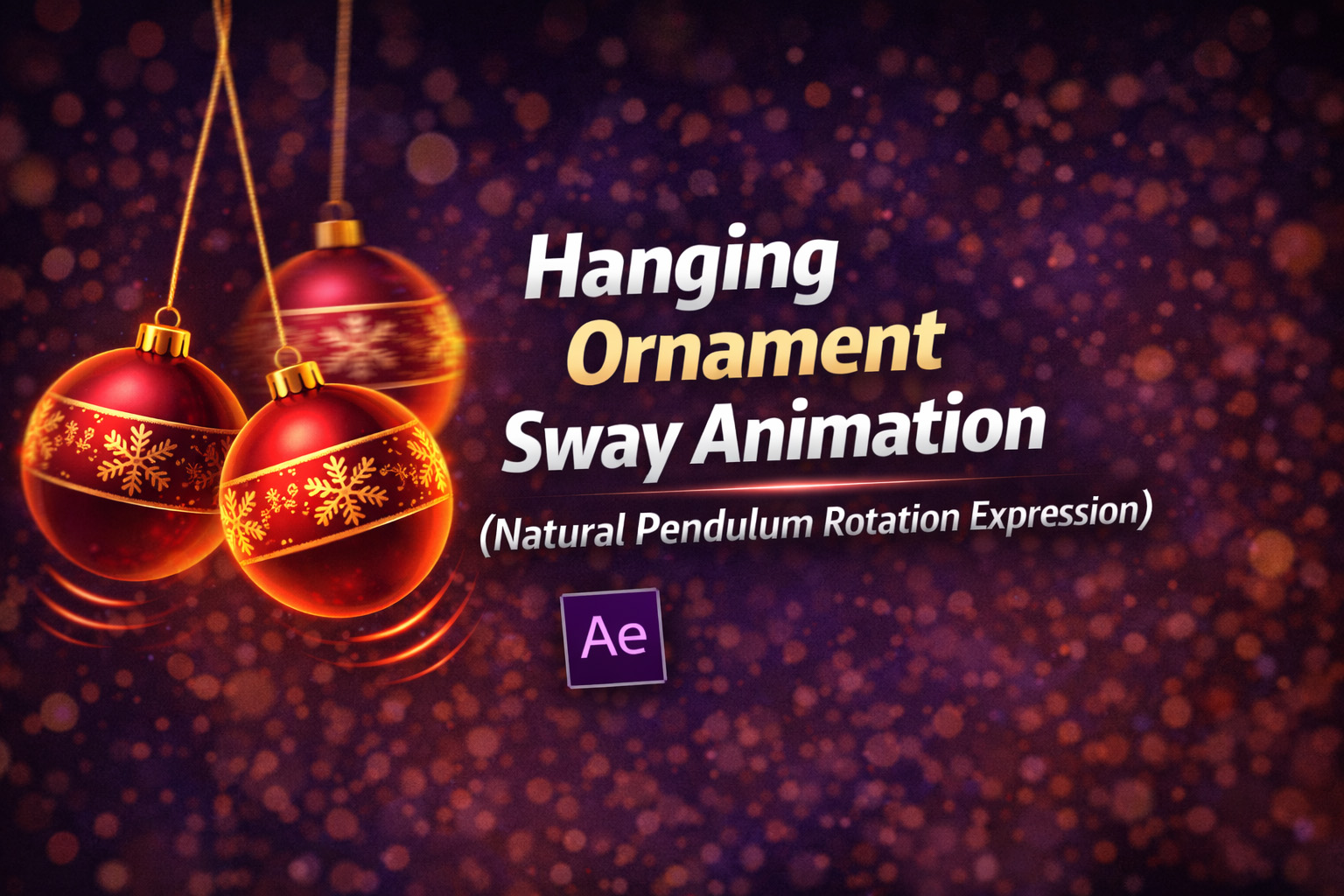
This expression creates a smooth, pendulum-like sway that mimics how a hanging object moves when affected by a gentle breeze. Instead of rigid or robotic motion, it produces a natural oscillation similar to ornaments, wind chimes, signboards, or hanging lights.
A key feature is the index-based phase offset, which ensures that when multiple layers use the same expression, they don’t all swing together. Each object starts its motion at a slightly different point in the sine wave, creating believable variation across a row of elements.
The result feels calm, physical, and organic—ideal for decorative motion.
How the Motion Works
- Sine Wave Rotation
A sine function creates smooth back-and-forth rotation, similar to a real pendulum. - Amplitude Control
Theampvalue defines how wide the swing is. - Frequency Control
Thefreqvalue controls how fast the ornament sways. - Index Offset
Each layer gets a unique timing offset, preventing synchronized movement. - Optional Decay
A decay value can be added if you want the motion to gradually settle and stop.
Expression
freq = 1.5;
amp = 15;
decay = 0; // Set to 0.1 if you want it to stop eventually
// Offset phase by index so ornaments sway differently
offset = index * 10;
Math.sin((time + offset) * freq) * amp;
How We Use This Expression
Step 1: Prepare the Ornament Layer
This expression works best on:
- Shape layers
- PNG ornaments
- Icons or decorative elements
- Text converted to shapes
Select the layer you want to animate.
Step 2: Set the Correct Anchor Point
- Select the Pan Behind Tool (Y)
- Move the Anchor Point to the top of the ornament (where it would hang)
This step is essential for realistic swinging motion.
Step 3: Apply the Expression to Rotation
- Press R to reveal Rotation
- Hold Alt (Windows) / Option (Mac) and click the Rotation stopwatch
- Paste the expression
- Click outside the editor to apply
The ornament will immediately begin swaying naturally.
Step 4: Duplicate for Natural Variation
- Duplicate the ornament layer multiple times
- Position them in a row or grid
Because the motion is offset using index, each ornament swings slightly differently—no extra setup required.
Step 5: Adjust the Motion Feel
Inside the expression, tweak:
amp→ gentle sway or dramatic swingfreq→ slow drift or breezy movementdecay→ add damping if you want the motion to settle
Small adjustments can completely change the mood.
Step 6: Enhance the Look
You can improve realism by adding:
- Subtle Motion Blur
- Slight Scale or Opacity drift
- Light shadow or glow
- Soft wind sound effects
The expression handles motion; effects handle atmosphere.
Best Use Cases in After Effects
- Hanging ornaments & decorations
- Wind chimes and bells
- Festive banners
- UI elements with soft motion
- Atmospheric background details
Why This Expression Works So Well
This setup feels natural because it respects real-world physics:
- Smooth acceleration and deceleration
- No abrupt stops
- Slight timing variation between objects
Instead of manually animating dozens of layers, you get believable motion with one line of math.
Recent Blogs
-
Create Procedural Spiral Path (Dynamic Vector Spiral Expression)
-
Animated 2D DNA Helix Path (Procedural Helix Expression)

-
Text Glitch Effect Expression (Real-Time Character Corruption)
-
Auto Scale to Comp (Smart Fit & Fill Scale Expression)
-
Snap to Layer or Comp Corners (Dynamic Alignment Expression)
-
Rainbow Color Cycle (Seamless HSL Color Loop Expression)
-
Christmas Lights Color Generator (Procedural Holiday Palette Expression)
-
Neon Light Flicker (Organic Electrical Glitch Expression)
-
Bell Shake & Ring Motion (Impact-Driven Oscillation Expression)
-
Heartbeat Pulse Animation (Biologically Accurate Scale Expression)