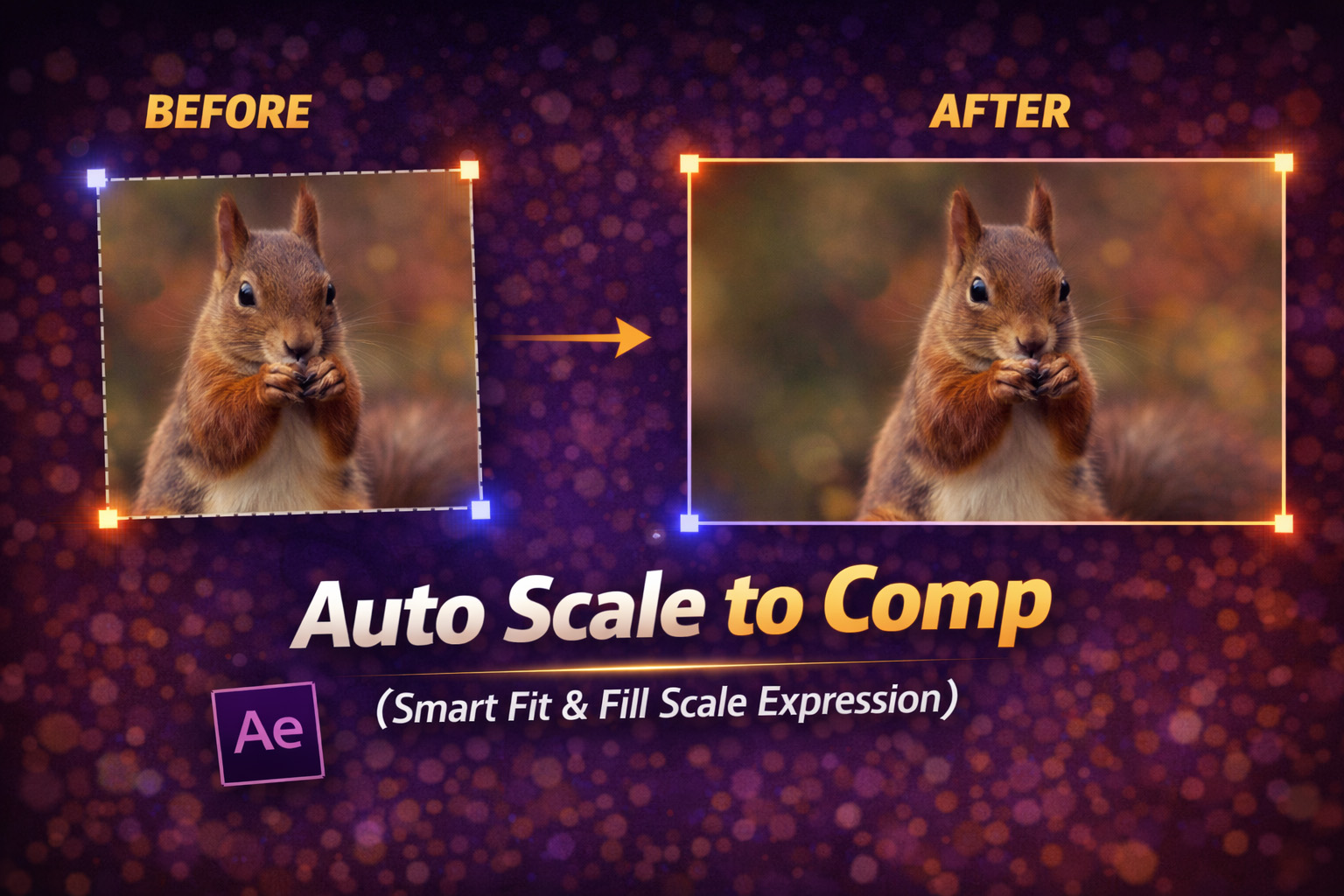
About This Expression
This expression automatically scales a layer so it perfectly adapts to the composition size. Whether you’re working with images, videos, or precomps, it removes the need to manually resize or guess scale values.
You can choose between:
- Fit → the entire layer is visible with no cropping
- Fill → the comp is completely filled, even if some cropping occurs
There’s also a Maintain Ratio switch that lets you decide whether the original aspect ratio should be preserved or intentionally stretched.
This makes the expression ideal for responsive templates, multi-resolution projects, and fast layout work.
Expression
maintainRatio = effect("Maintain Ratio")("Checkbox");
fillMode = effect("Fit / Fill")("Checkbox");
lw = thisLayer.width;
lh = thisLayer.height;
cw = thisComp.width;
ch = thisComp.height;
aspectLayer = lw / lh;
aspectComp = cw / ch;
if (maintainRatio == 1) {
 if (fillMode == 0){
  // FIT (contain without cropping)
  scaleFactor = Math.min(cw / lw, ch / lh);
  [scaleFactor * 100, scaleFactor * 100];
 } else {
 // FILL (cover full comp, may crop)
 scaleFactor = Math.max(cw / lw, ch / lh);
 [scaleFactor * 100, scaleFactor * 100];
 }
} else {
 // No ratio constraint, stretch to fit/fill comp
 if (fillMode == 0) {
  [cw / lw * 100, ch / lh * 100];
  // Fit (stretch)
 } else {
  [cw / lw * 100, ch / lh * 100];
  // Fill (also stretches in this case)
 }
}
How We Use This Expression
Step 1: Select the Layer to Auto-Scale
This expression works on:
- Images
- Video layers
- Precomps
- Solids or backgrounds
Select the layer you want to automatically scale.
Step 2: Add Expression Controls
On the selected layer, add:
- Checkbox Control → rename to
Maintain Ratio - Checkbox Control → rename to
Fit / Fill
These controls act as your scaling switches.
Step 3: Apply the Expression to Scale
- Press S to reveal Scale
- Hold Alt (Windows) / Option (Mac) and click the Scale stopwatch
- Paste the full expression
- Click outside the editor to apply
The layer will instantly resize based on the comp.
Step 4: Choose Fit or Fill Mode
Using the Fit / Fill checkbox:
- Unchecked (0) → Fit inside comp (no cropping)
- Checked (1) → Fill entire comp (may crop edges)
This behaves just like “Fit” and “Fill” options in design tools.
Step 5: Control Aspect Ratio
Using the Maintain Ratio checkbox:
- Checked → keeps original proportions
- Unchecked → stretches layer to exactly match comp size
This gives you full creative control over distortion vs accuracy.
Step 6: Resize the Comp Safely
One of the biggest advantages:
- Change comp resolution
- Swap footage sizes
- Replace images
The layer always resizes correctly—no manual fixes required.
Step 7: Use in Templates & Reusable Projects
This expression is perfect for:
- Social media templates
- MOGRTs
- Slideshow projects
- Client-editable layouts
Clients can replace footage without breaking the design.
Best Use Cases in After Effects
- Background images & videos
- Responsive design templates
- Vertical ↔ horizontal format switching
- Multi-platform exports
- Automated layout systems
Why This Expression Is a Must-Have
Manual scaling breaks the moment footage changes. This expression turns scaling into logic instead of guesswork, making projects faster and future-proof.
You get:
- Automatic resizing
- Zero keyframes
- Consistent results
- Clean, professional layouts
Recent Blogs
-
Create Procedural Spiral Path (Dynamic Vector Spiral Expression)
-
Animated 2D DNA Helix Path (Procedural Helix Expression)

-
Text Glitch Effect Expression (Real-Time Character Corruption)

-
Snap to Layer or Comp Corners (Dynamic Alignment Expression)
-
Rainbow Color Cycle (Seamless HSL Color Loop Expression)

-
Christmas Lights Color Generator (Procedural Holiday Palette Expression)

-
Neon Light Flicker (Organic Electrical Glitch Expression)

-
Hanging Ornament Sway Animation (Natural Pendulum Rotation Expression)

-
Bell Shake & Ring Motion (Impact-Driven Oscillation Expression)

-
Heartbeat Pulse Animation (Biologically Accurate Scale Expression)