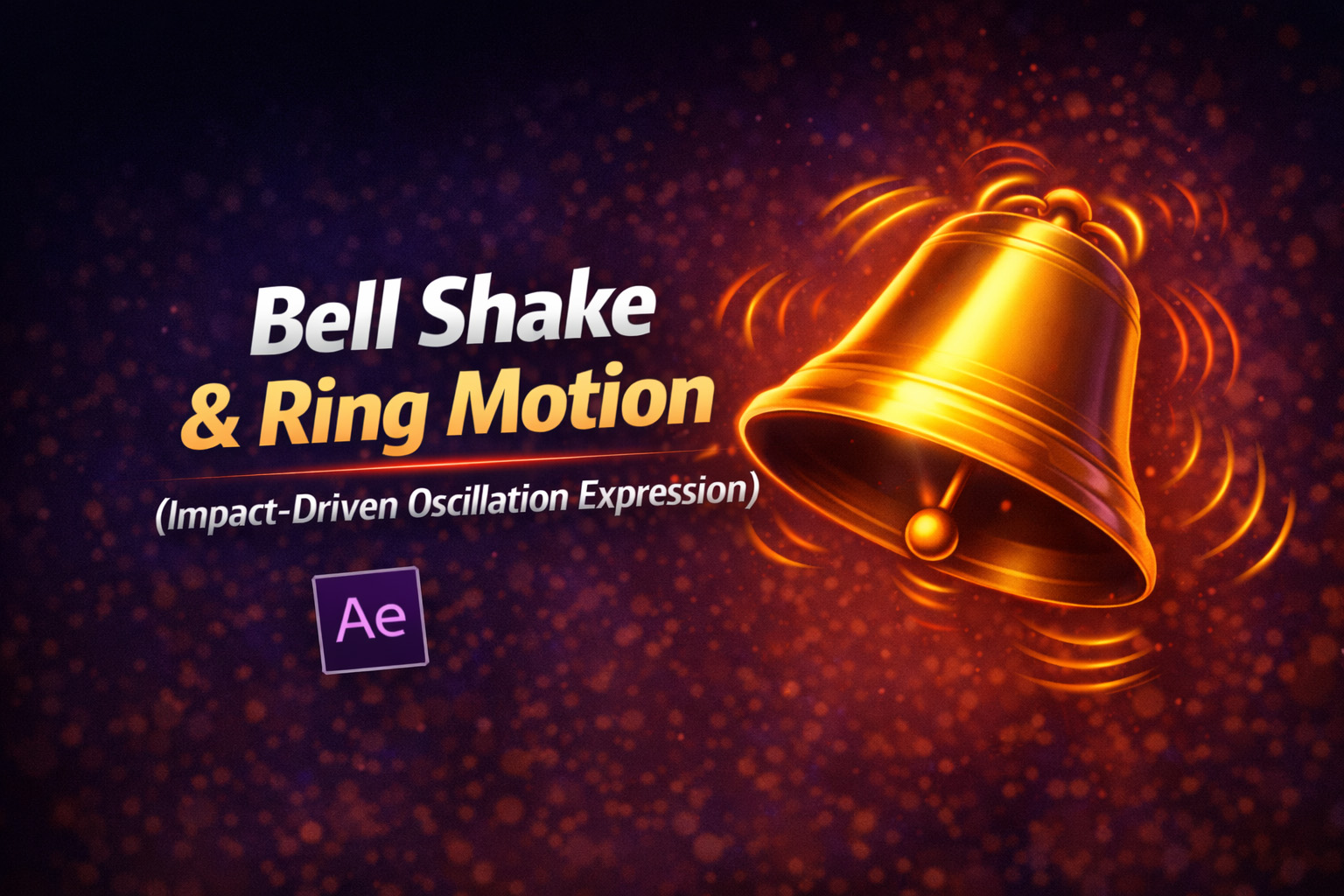
About This Expression
This expression simulates the motion of a bell being struck, rung, or vibrated at regular intervals. Instead of moving continuously like a sine wave, it creates a short burst of rapid oscillation, followed by a moment of complete stillness.
This behavior closely matches real-world physics:
- An object is hit
- It vibrates intensely for a brief moment
- The motion naturally dies out
- The object rests until the next impact
The result feels intentional, physical, and believable—perfect for ringing bells, notifications, alerts, and impact-driven motion.
How the Motion Works
- Interval Timing
The animation repeats everyintervalseconds using modulo time logic. - Shake Duration
The shake only happens duringshakeDur. Outside this window, the value returns to zero. - High-Frequency Oscillation
A fast sine wave (freq) creates the ringing vibration. - Natural Decay
The amplitude fades out smoothly using a decay multiplier, preventing harsh stops.
This combination creates a convincing “hit → ring → rest” cycle.
Expression
interval = 2;
shakeDur = 0.5;
amp = 25;
freq = 30;
loopTime = time % interval;
if (loopTime < shakeDur) {
 Math.sin(loopTime * freq) * amp * (1 - loopTime/shakeDur);
 } else {
 0;
}
How We Use This Expression
Step 1: Choose the Property to Animate
This expression works best on:
- Rotation (most realistic for bells)
- Position (for shake effects)
- Anchor Point (for pivot-based motion)
Select the layer you want to animate.
Step 2: Apply the Expression
- Reveal the property (e.g., press R for Rotation)
- Hold Alt (Windows) / Option (Mac) and click the stopwatch
- Paste the expression
- Click outside the editor to apply
The layer will now shake briefly at regular intervals.
Step 3: Set the Ring Timing
Adjust this value:
interval = 2;
Examples:
1→ rapid notification shake2–3→ natural bell ringing5+→ occasional alert or reminder
Step 4: Control the Shake Feel
Fine-tune the realism by adjusting:
shakeDur→ how long the ringing lastsamp→ strength of the shakefreq→ sharp vibration vs heavy swing
Small changes make a big difference.
Step 5: Use With Proper Pivot
For bells:
- Move the Anchor Point to the top of the bell
- Apply the expression to Rotation
This creates a natural swinging-and-ringing motion instead of a flat shake.
Step 6: Combine With Sound & Effects
This expression works beautifully when paired with:
- Bell or notification sound effects
- Motion blur
- Subtle scale or glow pulses
- UI highlight animations
The motion and sound sync naturally because the timing is math-based.
Best Use Cases in After Effects
- Bell ringing animations
- Notification & alert UI
- App onboarding cues
- Impact or hit reactions
- Icon shake feedback
Why This Expression Feels So Real
The key is rest. Real objects don’t move forever—they react, decay, and stop. By separating motion into bursts instead of loops, this expression avoids the artificial “always moving” look.
You get:
- Physically believable motion
- Clean looping logic
- Full timing control
- Zero keyframes or plugins
Recent Blogs
-
Create Procedural Spiral Path (Dynamic Vector Spiral Expression)
-
Animated 2D DNA Helix Path (Procedural Helix Expression)
-
Text Glitch Effect Expression (Real-Time Character Corruption)
-
Auto Scale to Comp (Smart Fit & Fill Scale Expression)
-
Snap to Layer or Comp Corners (Dynamic Alignment Expression)
-
Rainbow Color Cycle (Seamless HSL Color Loop Expression)
-
Christmas Lights Color Generator (Procedural Holiday Palette Expression)
-
Neon Light Flicker (Organic Electrical Glitch Expression)
-
Hanging Ornament Sway Animation (Natural Pendulum Rotation Expression)
-
Heartbeat Pulse Animation (Biologically Accurate Scale Expression)