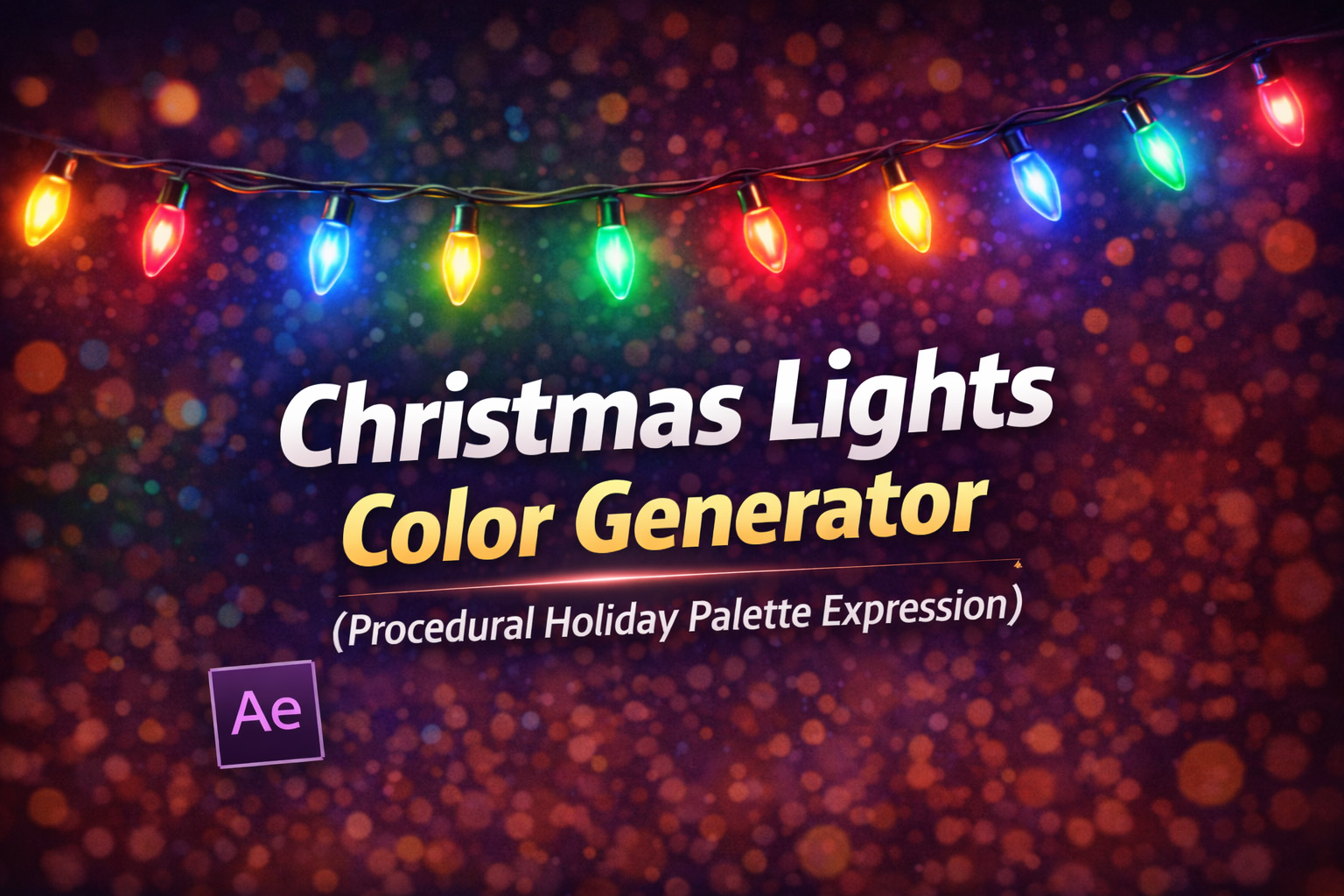
This expression creates a randomly blinking Christmas light effect by switching a layer’s color between a predefined holiday palette: red, green, gold, and white.
Instead of smoothly animating colors or looping through them in order, the expression uses random selection with timing control. Each color change feels spontaneous—like real decorative lights—rather than mechanical or synchronized.
By factoring in the layer index, multiple duplicated lights will always blink independently, avoiding the “all lights change at once” problem that breaks realism.
How the Color Logic Works
- Fixed Holiday Palette
Colors are defined as RGBA values, ensuring consistent festive tones. - Time-Based Switching
The color changes at a controllable rate usingtime * speed. - Index-Based Randomness
Each layer gets its own random sequence, even when duplicated. - Instant Color Jumps
Colors switch instantly rather than fading, just like real electric bulbs.
Expression
// Palette Red, Green, Gold, White
colors = [
[0.8, 0, 0, 1],
[0, 0.5, 0, 1],
[1, 0.8, 0, 1],
[1, 1, 1, 1]
];
speed = 3; // Changes per second
idx = Math.floor(time * speed);
// Randomize based on layer index so lights don't sync
seedRandom(index + idx, true);
choice = Math.floor(random(colors.length));
colors[choice];
How We Use This Expression
Step 1: Create or Select a Light Layer
This expression works on:
- Shape layers (circles, bulbs, dots)
- Solid layers
- Text layers
- Icons or ornament graphics
Select the layer you want to act as a light.
Step 2: Apply the Expression to Color
Apply the expression to one of the following:
- Fill Color (Shape Layer)
- Text Fill Color
- Effect Color Control
- Reveal the color property
- Hold Alt (Windows) / Option (Mac) and click the color stopwatch
- Paste the expression
- Click outside the editor to apply
The layer will immediately begin changing colors.
Step 3: Duplicate for Light Strings
- Duplicate the layer multiple times
- Arrange them in a line, curve, or tree shape
Because the expression uses:
seedRandom(index + idx, true);
Each light flashes differently with no extra setup.
Step 4: Adjust Blink Speed
Change:
speed = 3;
1–2→ slow, cozy blinking3–4→ classic Christmas lights6+→ energetic or playful look
Step 5: Customize the Palette
You can easily:
- Add blue or pink lights
- Remove gold for classic red/green
- Create themed palettes (warm white only, icy blue, etc.)
Just edit the colors array.
Step 6: Enhance the Look
For realistic Christmas lights, combine with:
- Glow (essential)
- Slight Blur
- Subtle Opacity variation
- Small Scale pulse
The expression controls color; effects sell the light.
Best Use Cases in After Effects
- Christmas light strings
- Festive decorations
- Holiday promos & reels
- UI festive themes
- Background ambience loops
Why This Expression Feels Natural
Real decorative lights are random, imperfect, and unsynchronized. By combining index-based randomness with time-based switching, this expression avoids repetitive patterns and creates a lively, organic feel.
You get:
- Infinite variation
- Clean looping
- Zero keyframes
- Easy duplication
Recent Blogs
-
Create Procedural Spiral Path (Dynamic Vector Spiral Expression)
-
Animated 2D DNA Helix Path (Procedural Helix Expression)

-
Text Glitch Effect Expression (Real-Time Character Corruption)
-
Auto Scale to Comp (Smart Fit & Fill Scale Expression)
-
Snap to Layer or Comp Corners (Dynamic Alignment Expression)
-
Rainbow Color Cycle (Seamless HSL Color Loop Expression)
-
Neon Light Flicker (Organic Electrical Glitch Expression)
-
Hanging Ornament Sway Animation (Natural Pendulum Rotation Expression)

-
Bell Shake & Ring Motion (Impact-Driven Oscillation Expression)
-
Heartbeat Pulse Animation (Biologically Accurate Scale Expression)