About This Expression
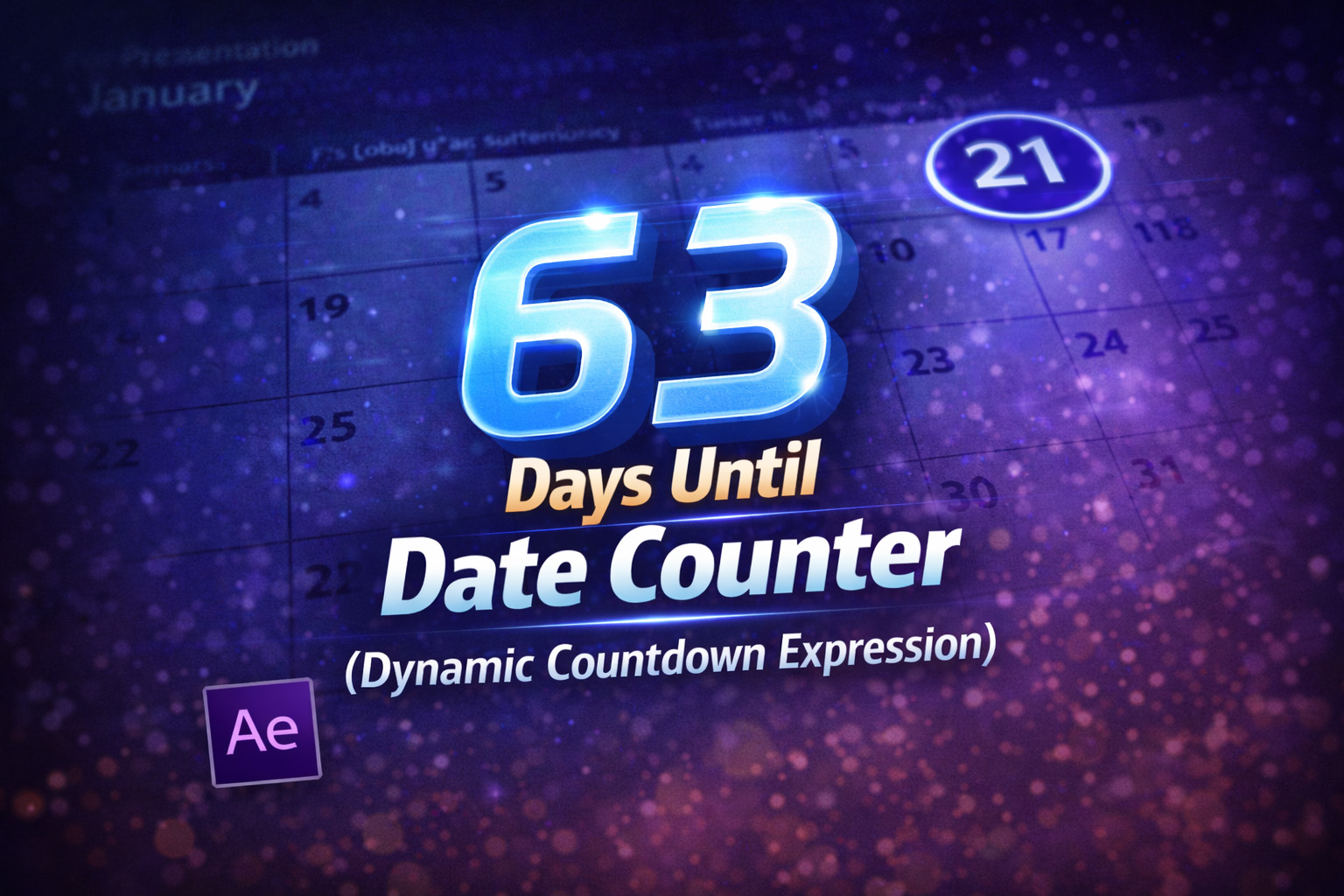
This expression creates a live “days remaining” counter that automatically updates based on the current date. It compares today’s date with a defined target date and calculates how many days are left until that event.
A key feature of this setup is its ability to detect when the target date has already passed. When that happens, it automatically resets the countdown to the same date in the next year—making it perfect for recurring holidays and annual events.
Because it’s driven entirely by JavaScript date logic, the counter stays accurate without any manual updates.
How the Date Logic Works
Precise Day Calculation
The time difference is calculated in milliseconds and converted into days, rounded up so partial days still count as a full day.
Target Date Setup
The month and day are defined manually, while the year is pulled from the current system date.
JavaScript Month Indexing
Since JavaScript months start at 0, the expression converts the human-readable month into a valid JS index.
Automatic Year Rollover
If today’s date is later than the target date, the expression automatically switches to the same date in the following year.
Expression
targetMonth = 12; // 1 = Jan, 12 = Dec
targetDay   = 31;
targetYear  = new Date().getFullYear();
today = new Date();
// Convert to JS month index (0–11)
jsMonth = targetMonth - 1;
targetDate = new Date(targetYear, jsMonth, targetDay);
// If date passed, count for next year
if (today > targetDate) {
 targetDate = new Date(targetYear + 1, jsMonth, targetDay);
}
// Calculate difference in days
oneDay = 1000 * 60 * 60 * 24;
diff = targetDate.getTime() - today.getTime();
daysLeft = Math.ceil(diff / oneDay);
daysLeft + " Days Left";
How We Use This Expression
Step 1: Create a Text Layer
- Open your composition in After Effects
- Select the Text Tool (T)
- Click in the comp and type any placeholder text (for example:
0 Days Left)
Step 2: Apply the Expression
- Twirl open the text layer
- Go to Text → Source Text
- Hold Alt (Windows) / Option (Mac) and click the stopwatch
- Paste the full expression into the expression editor
- Click outside the editor to apply
The text will instantly update to show the correct number of days remaining.
Step 3: Set Your Target Date
Inside the expression, change:
targetMonth = 12;
targetDay   = 31;
For example:
2 / 14→ Valentine’s Day10 / 24→ Event launch1 / 1→ New Year
No other changes are needed—the year updates automatically.
Step 4: Style the Countdown
You can now design the text normally:
- Change font, size, and color
- Add animations (scale, opacity, position)
- Apply glow, drop shadow, or motion presets
The expression only controls the number, not the styling.
Step 5: Use It in Templates
This setup is perfect for:
- Reusable After Effects templates
- MOGRT files for Premiere Pro
- Seasonal promos that repeat every year
Once created, you never need to update the date manually again.
Optional Enhancements
You can easily extend this inside After Effects by:
- Adding plural logic (
1 DayvsDays) - Combining with a progress bar
- Linking the date values to Expression Controls for easy editing
Why This Works So Well in After Effects
After Effects evaluates expressions in real time, which means:
- The countdown updates every day automatically
- Renders always show the correct number
- Projects remain future-proof without edits
This makes it a reliable solution for both one-off videos and long-term templates.
Recent Blogs
-
Create Procedural Spiral Path (Dynamic Vector Spiral Expression)
-
Animated 2D DNA Helix Path (Procedural Helix Expression)

-
Text Glitch Effect Expression (Real-Time Character Corruption)
-
Auto Scale to Comp (Smart Fit & Fill Scale Expression)
-
Snap to Layer or Comp Corners (Dynamic Alignment Expression)
-
Rainbow Color Cycle (Seamless HSL Color Loop Expression)

-
Christmas Lights Color Generator (Procedural Holiday Palette Expression)

-
Neon Light Flicker (Organic Electrical Glitch Expression)

-
Hanging Ornament Sway Animation (Natural Pendulum Rotation Expression)

-
Bell Shake & Ring Motion (Impact-Driven Oscillation Expression)